Recovering BIOS-based systems
If a protected (source) system on the Plan the recovery page includes a partition labeled “System”, the system is BIOS-based.
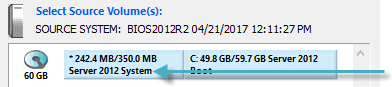
You can restore a BIOS-based system to a UEFI or BIOS destination machine.
Recovering a BIOS-based system to a UEFI destination machine
If you drag the Boot volume from a protected BIOS-based system to a UEFI destination machine, an ESP volume is generated automatically in the destination machine. An ESP (EFI system partition) is required for a UEFI system to boot into Windows.
The ESP partition must be on a GPT-formatted disk in the destination machine. If you drag a volume to an uninitialized disk on a UEFI system, the disk type automatically changes to GPT.
The order of partitions on the GPT disk should be: ESP, OEM (if any) and MSR followed by primary data partition(s). Partition order rules are enforced during a restore.
If required, an MSR (Microsoft Reserved) partition is automatically created in the destination machine.
You do not have to restore the System volume from a protected BIOS-based system to a UEFI destination machine.
When restoring a volume from a BIOS-based system to a UEFI destination machine, there might not be enough space, even if the destination disk is the same size. This problem can occur because an uninitialized UEFI disk defaults to GPT format and additional space is required for a GPT partition table. To prevent this problem, choose a larger destination volume or convert the volume to MBR format.
Recovering a BIOS-based system to a BIOS destination machine
To restore a BIOS-based system to a BIOS destination machine, you must restore both the System volume and the Boot volume from the source to the destination machine. The destination disk must use MBR formatting. A BIOS-based system can have GPT-formatted disks, but cannot boot from a GPT disk.
An active partition is required for booting. The active partition is marked with an asterisk (*).
To avoid losing disk space, initialize all disks larger than 2TB as GPT format. MBR partitioning does not allow to use disk space beyond 2TB.
If the destination machine does not boot after the restore, you may need to go into the BIOS and select the disk for booting. Dragging the System/Active volume to the first disk in the destination machine usually avoids this problem.